
 en
en italiano
 čeština
 Deutsch
 français
 hrvatski
 magyar
 polski
 српски
 русский
 中文
中文 中文
中文 한국어
한국어 español
Dividing the current window into multiple windows
Dividing the current window into multiple windows
You can divide a single drawing window into multiple tiled windows (called viewports) on the Model tab. You can control the number of windows created and the arrangement of the windows. You can also save and restore named window configurations and display a list of the current and saved window configurations.
While working in a viewport, use the Maximize Viewport command to enlarge the view to full size, allowing you to easily work on the geometry in that view. When done, use the Minimize Viewport command to switch back to the original scale and center point of the viewport.
1 Do one of the following to choose Viewports ( ):
):
• Select Viewports from the ribbon or the menu.
• On the View toolbar, click the Viewports tool.
• Type viewports and then press Enter.
2 In the prompt box, choose Create 2 Viewports, Create 3 Viewports, or Create 4 Viewports.
3 In the prompt box, choose the viewport orientation.
|
|
|
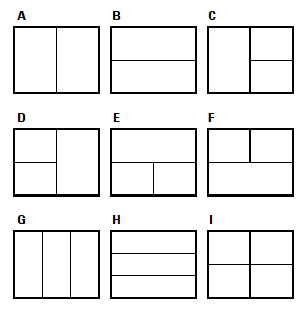
You can divide a drawing window into two windows arranged vertically (A) or horizontally (B); three windows arranged left (C), right (D), above (E), below (F), vertically (G), or horizontally (H); or four tiled windows (I). |
Viewports can be resized.
Click and drag the border of a viewport to resize it.
To switch to a different viewport
1 Do one of the following:
• Click the edge of the viewport you want to make active.
• Press Ctrl+R to make the next viewport active.
To maximize the current viewport
• Select Maximize Viewport from the ribbon or the menu.
• On the status bar, click Maximize Viewport ( ).
).
• Type vpmax and then press Enter.
The viewport is enlarged.
To minimize the current viewport (if it is maximized)
• Select Minimize Viewport from the ribbon or the menu.
• On the status bar, click Minimize Viewport ( ).
).
• Type vpmin and then press Enter.
The viewport returns to its original scale and center point.